How to Archive and Back Up Creative Project Files
By Daniel Reyes · Published · 5 minutes read
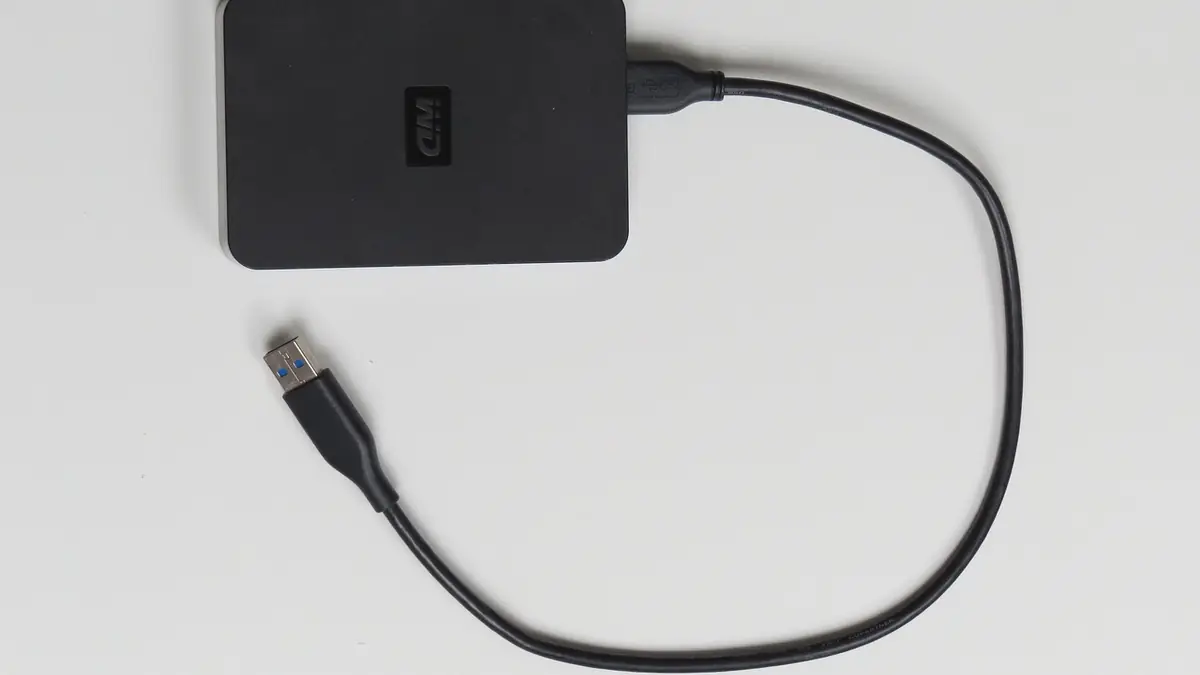
Creative projects generate enormous amounts of data: layered design files, raw photo and video footage, audio stems and exported deliverables. Losing a single project can mean redoing days or weeks of work, damaging client trust and sometimes triggering contractual penalties. A backup plan is not about buying more drives; it is about deciding what to keep, for how long and where.
This guide outlines a 3-2-1 backup strategy adapted to large media files and long-term client archives. It covers storage tiers, retention policies, verification habits and the real costs involved, so you can design a system that survives a dropped drive, a ransomware attack or a studio fire.
Start with a retention policy, not a hard drive
Before buying storage, decide what you are legally and practically obliged to keep. Most studio contracts specify a retention period for final deliverables, often 12 to 24 months, while working files and raw footage can be deleted sooner unless the client pays for an archive. Check each client agreement and record the retention window in your project management tool so nothing is kept by accident or deleted too early.
For each project, classify files into three groups: active (needed for current work), deliverable (what the client received and may request again) and source (raw footage, layered files, unused takes). Active files live on fast local storage; deliverables and sources move to slower, cheaper archive tiers. This tiering keeps your working drives lean and makes the backup system predictable.
- Final deliverables: retain 12–24 months unless contract says otherwise
- Raw footage and layered files: archive for 6–12 months, then offer paid long-term storage
- Exports and client-facing assets: keep a compressed preview copy indefinitely
- Working caches and proxies: delete after project sign-off
The 3-2-1 rule for media files
The classic 3-2-1 rule means three copies of your data, on two different media types, with one copy off-site. For a video project, that could be the working SSD (copy one), a local RAID or NAS (copy two) and a cloud or remote drive (copy three). The two media types matter because a single faulty batch of drives or a controller failure can take out multiple copies at once.
Large media files make the 3-2-1 rule expensive if applied blindly. A common compromise is to apply full 3-2-1 protection to final deliverables and project files, while raw footage gets two copies (local NAS plus off-site) for the first 90 days, then one archived copy after delivery. Document these exceptions so the team knows which files are protected and which are not.
- Copy 1: fast local working drive (SSD or RAID)
- Copy 2: on-site NAS or server, different device from copy 1
- Copy 3: off-site cloud bucket or rotated external drive kept at another location
- Verify restores quarterly, not just backups
Choosing storage tiers for large files
Not all storage needs to be fast. Working drives should be NVMe or SSD for active editing, while archives can live on spinning disks or object storage. A small studio might use a 4–8 bay NAS with 8–16 TB drives, giving 24–80 TB usable depending on RAID level, plus a cloud bucket for off-site copies. Cloud storage costs vary widely; for cold archives, expect roughly $4–10 per terabyte per month, while hot storage can be several times that.
Cloud backup is convenient but slow to restore over typical studio internet connections. A 1 TB restore at 100 Mbps takes about 24 hours, so for urgent projects keep a local copy of recent work. Many teams use a hybrid approach: fast local NAS for day-to-day access and cloud object storage for the third copy, with a disaster recovery plan that includes borrowing a drive or using a seed drive service for very large restores.
Backup frequency and automation
Manual backups fail because people forget. Automate the first two copies: workstations sync to the NAS continuously or hourly, and the NAS replicates to cloud storage nightly. For active projects, a nightly cloud sync may mean up to 24 hours of lost work in a disaster; if that is unacceptable, add an hourly snapshot or a second cloud sync during the day. The right frequency depends on how much work you can afford to redo.
Automation must be monitored. Set up alerts for failed backup jobs and check them weekly. A common failure mode is a full backup drive that silently stops accepting new data; without alerts, you discover it only when you need a restore. Keep a simple log of backup jobs, last successful run and any errors, and review it in your weekly studio meeting.
- Workstation to NAS: continuous or hourly
- NAS to cloud: nightly, with weekly verification
- Project archive on sign-off: copy to cold storage within 5 business days
- Monthly restore test of a random file from each tier
Verifying backups and testing restores
A backup you have never restored is a hope, not a plan. Test restores quarterly: pick a random project, restore a few files from each copy and open them in the original application. Check that file permissions, metadata and folder structures survive. For video, confirm that media links still resolve and that proxies are not required for the archive copy.
Also verify integrity at the file level. Large media files are prone to silent corruption, so use checksums (MD5 or SHA-256) when copying to archive and compare them periodically. Many backup tools can generate and verify checksums automatically. If a checksum fails, re-copy from another copy immediately; do not assume the file is fine because it opens.
| File type | Active period | Archive period | Copies required |
|---|---|---|---|
| Final deliverables | Until client sign-off | 12–24 months | 3 (local, NAS, cloud) |
| Layered design files | Project duration | 6–12 months | 3 |
| Raw video footage | Project duration | 6–12 months | 2 during project, 1 after |
| Audio stems and sessions | Project duration | 12 months | 3 |
| Proxies and caches | Project duration | Delete on sign-off | 0 |
Client delivery and long-term access
Clients increasingly expect access to their files long after the project ends. Decide what you offer: a download link for 30–90 days, a paid archive service, or handover of final files on a drive. Put this in your contract and your scope of work so there are no surprises. If you offer long-term hosting, price it as a recurring service rather than absorbing it into project fees.
When delivering, provide the highest-quality final files and a clear README describing formats, software versions and any dependencies. Keep a copy of that delivery package in your own archive. For projects with many revisions, archive only the approved final version plus the source files needed to recreate it; keeping every intermediate version multiplies storage without adding much value.
- State retention period and handover terms in the contract
- Offer paid archive hosting as a separate line item
- Deliver final files plus a manifest and software version notes
- Archive approved final and source files, not every intermediate version
Costs, security and disposal
Budget for storage as part of your overhead. A small studio with 20 TB of active and archived data might spend $150–400 per month on cloud storage and drives, plus the cost of a NAS every 4–5 years. Track these costs alongside project budgets so you can see whether archiving is eroding margins. For help separating overhead from project costs, see Studio Overhead vs. Project Costs: What to Track.
Security matters for client material. Encrypt archive drives and cloud buckets, use unique credentials and enable versioning so a ransomware attack cannot overwrite your backups. When disposing of drives, wipe them securely or physically destroy them. Finally, review your archive annually: delete expired projects according to your retention policy and confirm that what remains is still readable with current software.
- Define a retention policy before choosing storage; not every file deserves a permanent copy.
- Apply full 3-2-1 protection to deliverables and project files, and document exceptions for raw footage.
- Automate backups and monitor failures weekly; a silent full drive is a common failure point.
- Test restores quarterly and verify checksums to catch silent corruption in large media files.
Daniel covers production workflows, lighting, and post-production for creative studios. He enjoys breaking down technical topics into clear comparisons and step-by-step guides. His work emphasizes cost-effective solutions for independent studios.